> ## Documentation Index
> Fetch the complete documentation index at: https://docs.testgenai.com/llms.txt
> Use this file to discover all available pages before exploring further.
# Update With Changes
> The Update with changes feature lets you review, comment, and request adjustments to your Checklist. This workflow enables you to collaboratively refine what needs to be tested, directly in the AI-powered workflow.
## 1. How “Update with changes” Works
* You review the generated Checklist.
* You can **comment** to request additions, removals, splits, merges, or other edits.
* All your changes and comments appear in the **right sidebar** under the **Changes** tab.
* When ready, click **Update with changes**:\
AI will process your feedback and update the Checklist accordingly. The new version of test cases will be created.
**Important:**
* Test Cases (TCs) already generated for unchanged checklist will be kept, even if their order or priority changes.
* For new, changed, checklist, you can generate new TCs as needed using “Continue” or generate individual TCs.
## 2. Types of Change Requests & How to Use Them
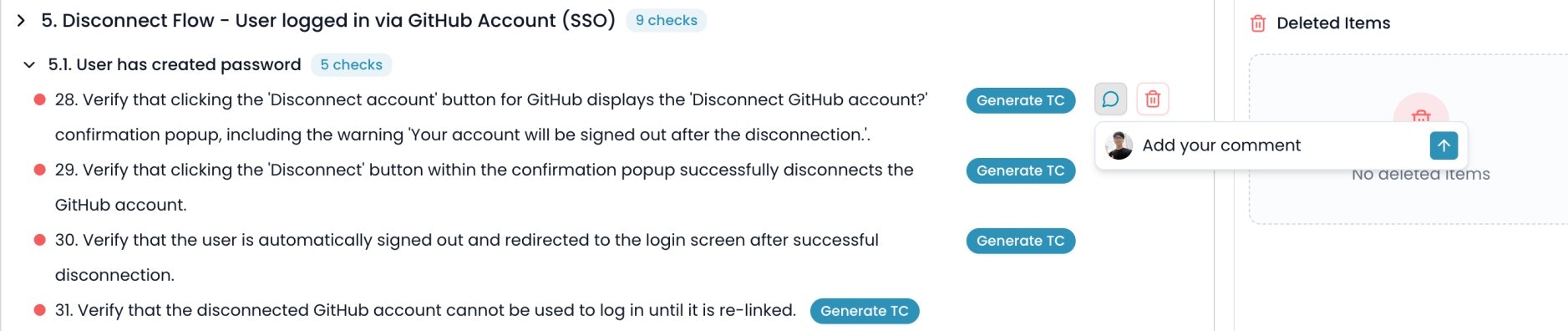
### 2.1. Comment on a checklist item
**Use:** Request changes, split into sub-checklist, or clarify details.
**How to:**
* Hover over a checklist row.
* Click the **comment icon** (speech bubble).
* Enter your comment and click the **up arrow** to submit.
* The checklist with comment will be added to **Comments** in the **Changes** sidebar.
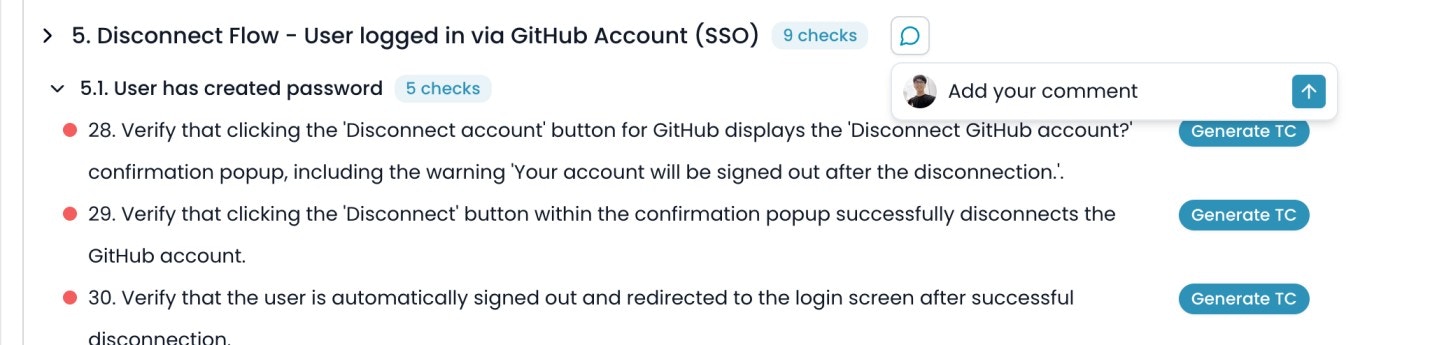
 ### 2.2. Comment on a Category or Sub-category
**Use:** Request to add checklist to category/sub-category, change category/sub-category structure, or add clarifying notes.
**How to:**
* Hover over a category/sub-category title.
* Click the **comment icon**.
* Enter your comment and click the **up arrow** to submit.
* The checklist with comment will be added to **Comments** in the **Changes** sidebar.
### 2.2. Comment on a Category or Sub-category
**Use:** Request to add checklist to category/sub-category, change category/sub-category structure, or add clarifying notes.
**How to:**
* Hover over a category/sub-category title.
* Click the **comment icon**.
* Enter your comment and click the **up arrow** to submit.
* The checklist with comment will be added to **Comments** in the **Changes** sidebar.
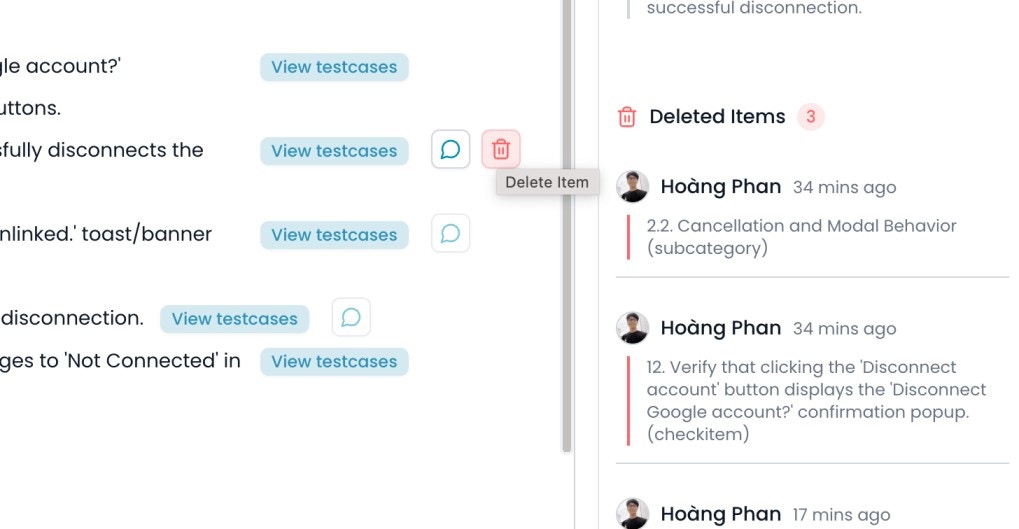
 ### 2.3. Delete a checklist item
**Use:** Request removal of a checklist.
**How to:**
* Hover over the checklist.
* Click the **trash icon**.
* The checklist will be added to **Deleted Items** in the Changes sidebar.
### 2.3. Delete a checklist item
**Use:** Request removal of a checklist.
**How to:**
* Hover over the checklist.
* Click the **trash icon**.
* The checklist will be added to **Deleted Items** in the Changes sidebar.
 ### 2.4. Delete a Category or Sub-category
**Use:** Remove a whole group and all its checklist.
**How to:**
* Hover over the category/sub-category.
* Click the **trash icon**.
* The category/sub-category are added to **Deleted Items**.
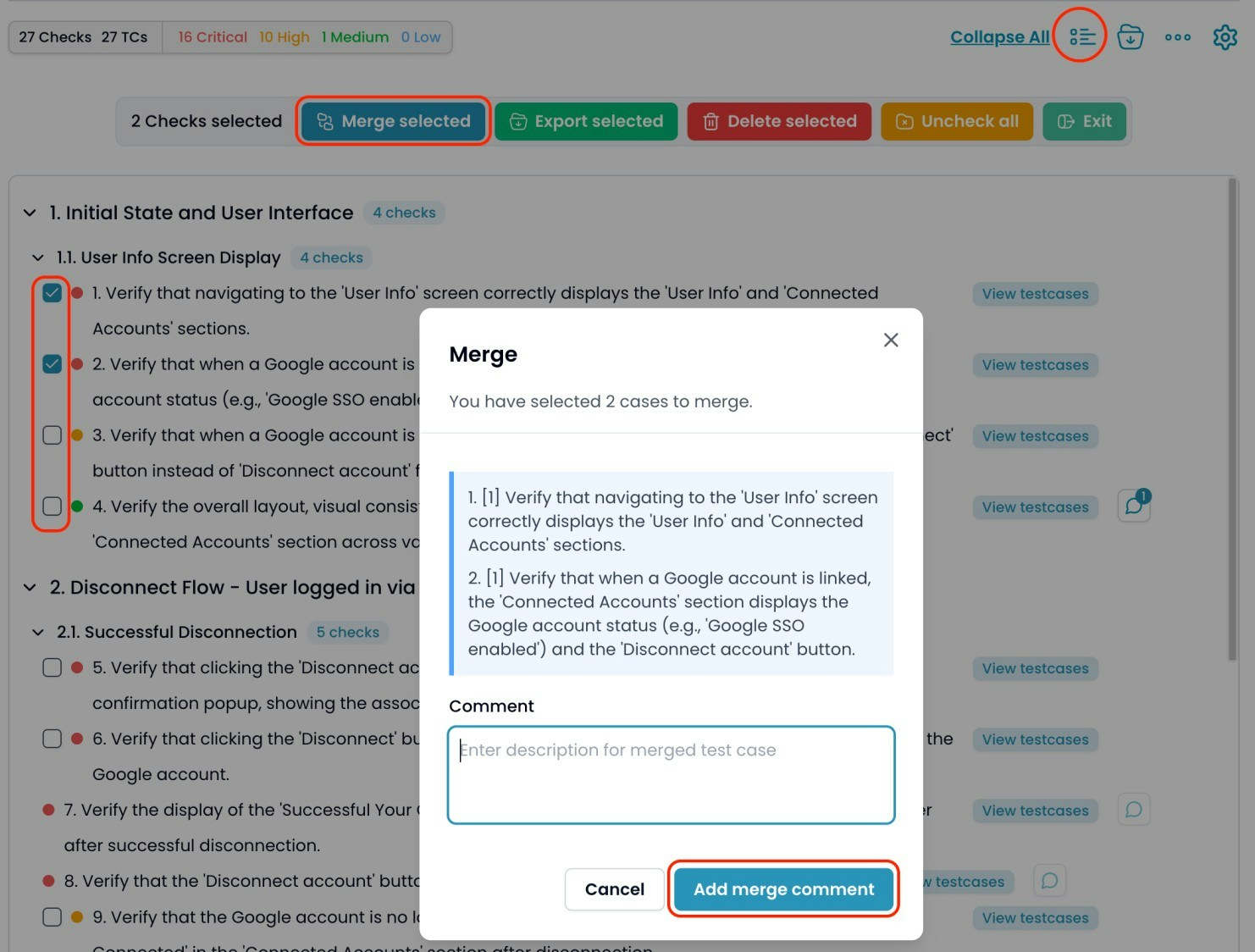
### 2.5. Merge Checklist
**Use:** Combine duplicate or overly detailed checklist into fewer, more concise ones.
**How to:**
* Click the **Multi-select** icon (next to download icon).
* Check the boxes beside the checklist you want to merge.
* Click **Merge selected**.
* In the popup, write your merge comment/description (or leave empty for a default merge).
* Click **Add merge comment**.
### 2.4. Delete a Category or Sub-category
**Use:** Remove a whole group and all its checklist.
**How to:**
* Hover over the category/sub-category.
* Click the **trash icon**.
* The category/sub-category are added to **Deleted Items**.
### 2.5. Merge Checklist
**Use:** Combine duplicate or overly detailed checklist into fewer, more concise ones.
**How to:**
* Click the **Multi-select** icon (next to download icon).
* Check the boxes beside the checklist you want to merge.
* Click **Merge selected**.
* In the popup, write your merge comment/description (or leave empty for a default merge).
* Click **Add merge comment**.
 ### 2.6. General Comments & Attachments
**Use:** General requests, adding more business rules, asking to add checklist, or clarifying with files or images.
**How to:**
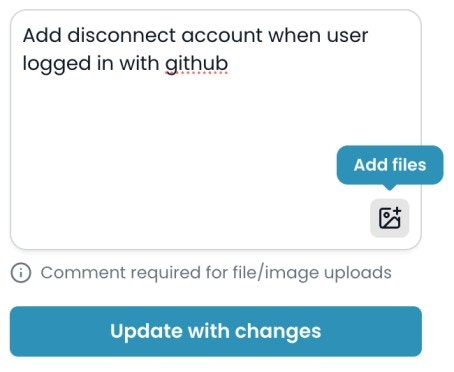
* Enter your request in the **input box** in the Changes sidebar.
* Optionally, use the **attachment icon** to add files/images.
* Click **Update with changes** when finished.
### 2.6. General Comments & Attachments
**Use:** General requests, adding more business rules, asking to add checklist, or clarifying with files or images.
**How to:**
* Enter your request in the **input box** in the Changes sidebar.
* Optionally, use the **attachment icon** to add files/images.
* Click **Update with changes** when finished.
 ## 3. Tracking and Applying Changes
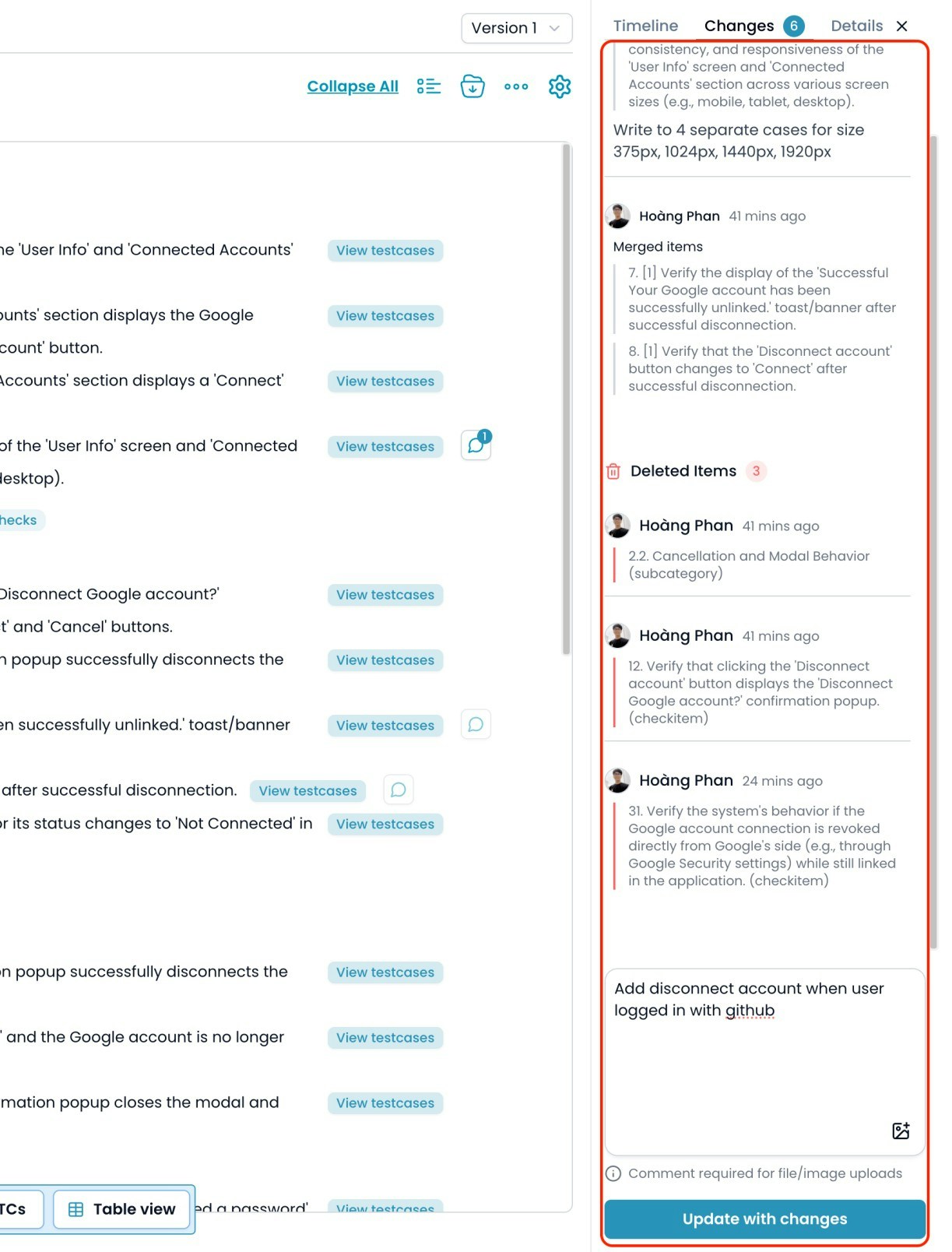
* All comments, deletes, and merge actions appear in the **Changes** sidebar.
* When ready, click **Update with changes** at the bottom of the sidebar.
## 3. Tracking and Applying Changes
* All comments, deletes, and merge actions appear in the **Changes** sidebar.
* When ready, click **Update with changes** at the bottom of the sidebar.
 * AI will process your requests and update the checklist.
* Previously generated Test Cases for unchanged checklist will remain.\
For new/changed checklist, use **Continue** or **Generate TC** on each checklist to create new Test Cases.
Create test cases from requirements and UI images
## 4. Reviewing Change History
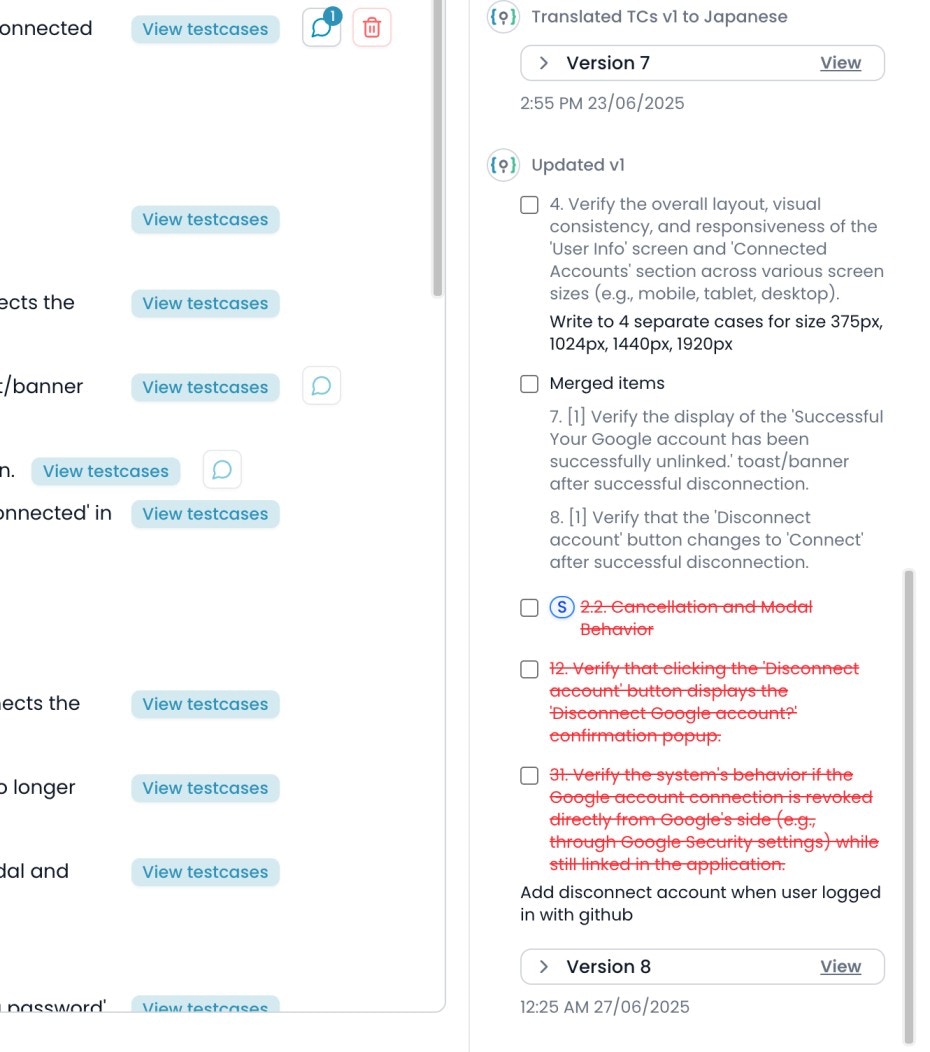
* All change requests and updates are tracked in the **Timeline** tab for auditing and traceability.
* You can review what was requested and compare how AI updated the checklist.
* AI will process your requests and update the checklist.
* Previously generated Test Cases for unchanged checklist will remain.\
For new/changed checklist, use **Continue** or **Generate TC** on each checklist to create new Test Cases.
Create test cases from requirements and UI images
## 4. Reviewing Change History
* All change requests and updates are tracked in the **Timeline** tab for auditing and traceability.
* You can review what was requested and compare how AI updated the checklist.
 **Tips:**
* Use comments for precise requests (e.g., “split this into 3 checklist for each user role”).
* Use merge when checklist are too detailed or duplicate.
* Attach screenshots or specs for complex changes.
* Always review the Timeline to ensure your requirements were correctly applied.
***
**Tips:**
* Use comments for precise requests (e.g., “split this into 3 checklist for each user role”).
* Use merge when checklist are too detailed or duplicate.
* Attach screenshots or specs for complex changes.
* Always review the Timeline to ensure your requirements were correctly applied.
***