> ## Documentation Index
> Fetch the complete documentation index at: https://docs.testgenai.com/llms.txt
> Use this file to discover all available pages before exploring further.
# Update Testcase
> The Update Test Case feature allows you to directly request changes to any individual test case.
## 1. How to Update a Test Case
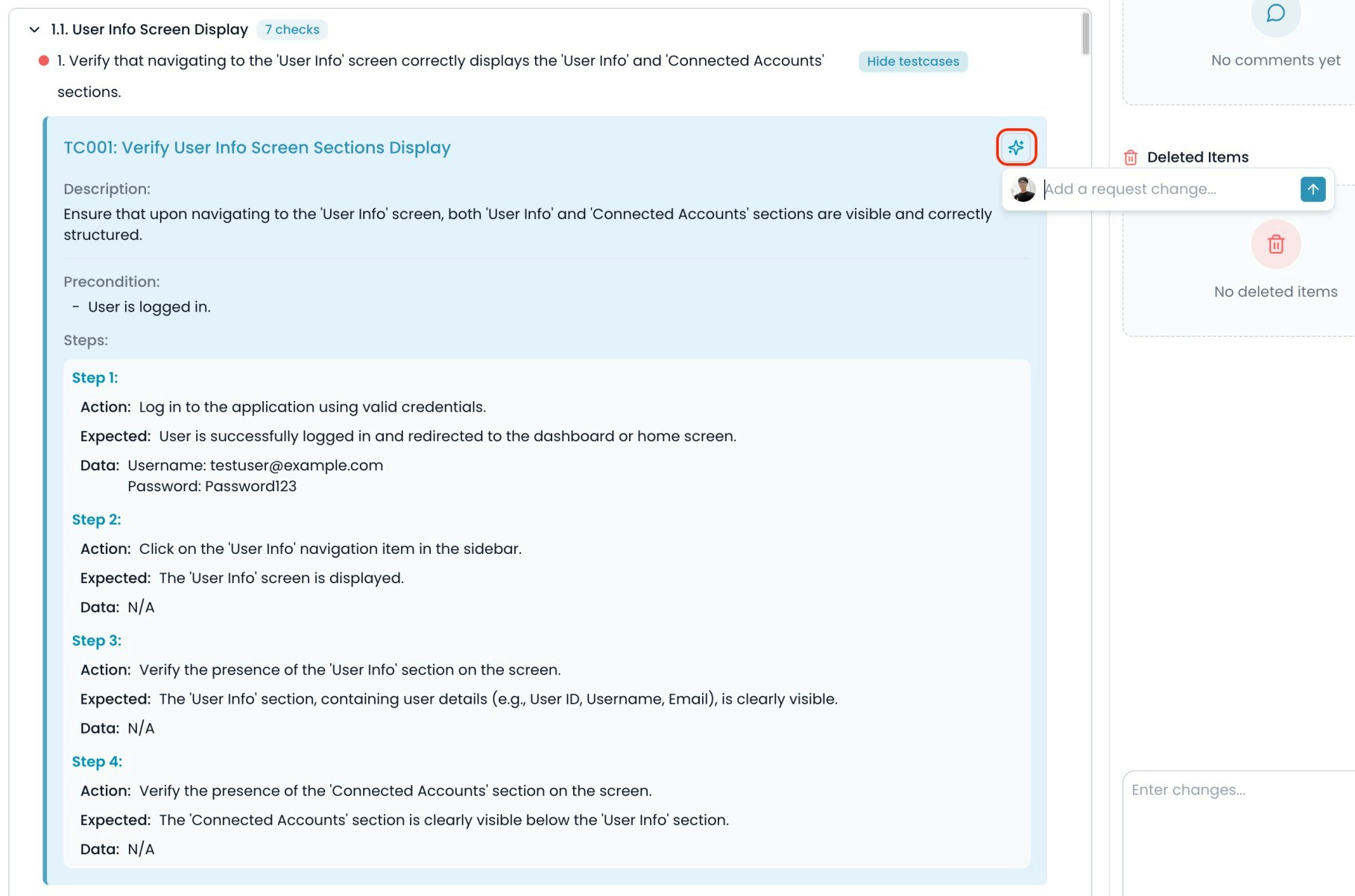
1. **Hover over the test case** you want to update.
2. Click the **Update Test Case** icon.
3. An input box labeled **"Add a request change..."** will appear.
4. **Enter your change request** — describe exactly how you want the test case to be updated.
5. Click the **up arrow icon** to send your request to the AI.
 ## 2. What Happens Next?
* The AI will analyze your request and update the selected test case according to your instructions.
* The updated test case will **replace** the previous test case.
* **Only the selected test case is changed**; this action does **not** create a new version of the overall checklist or test cases.
## 3. Change History
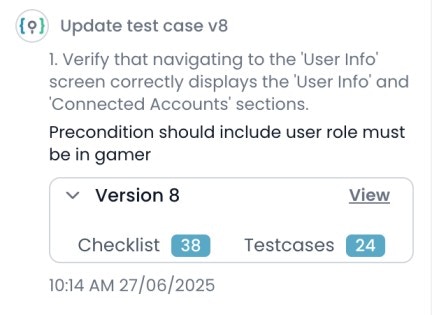
* Every update to a test case is recorded in the **Timeline** tab, so you can always review what changes were made, when, and by whom.
## 2. What Happens Next?
* The AI will analyze your request and update the selected test case according to your instructions.
* The updated test case will **replace** the previous test case.
* **Only the selected test case is changed**; this action does **not** create a new version of the overall checklist or test cases.
## 3. Change History
* Every update to a test case is recorded in the **Timeline** tab, so you can always review what changes were made, when, and by whom.
 Tips:
* Use this feature to update an individual test case at any time
* Be specific in your request to ensure the updated test case meets your expectations.
* For batch updates or changes to the checklist structure, use "Update with changes" at the checklist level.
***
Tips:
* Use this feature to update an individual test case at any time
* Be specific in your request to ensure the updated test case meets your expectations.
* For batch updates or changes to the checklist structure, use "Update with changes" at the checklist level.
***