> ## Documentation Index
> Fetch the complete documentation index at: https://docs.testgenai.com/llms.txt
> Use this file to discover all available pages before exploring further.
# Translate
> The Translate feature allows you to quickly translate all your checklist and test cases into another language with just a few clicks. This is especially useful for teams working in multilingual environments or preparing documentation for different regions.
## 1. How to Use the Translate Feature
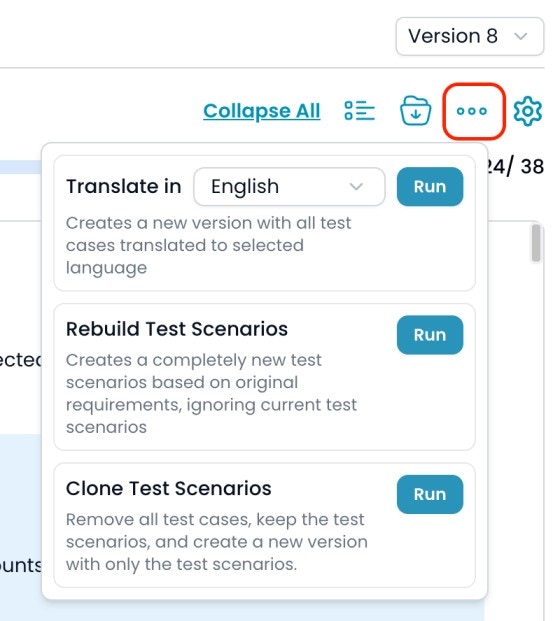
1. On the feature details page, click the **three dots ("...")** menu located between the download and settings icons.
2. In the dropdown, find the **Translate** section.
3. Select the target language you want to translate your test cases into using the language dropdown.
4. Click the **Run** button to start the translation.
 ## 2. How Translation Works
* The application sends your translation request to the AI engine.
* The AI will translate all current test cases and/or checklist into the selected language.
* If your current version only has checklist, only those will be translated.
* If your current version includes both checklist and test cases, both will be translated.
* After the translation is complete:
* A **new version** is automatically created with the translated content.
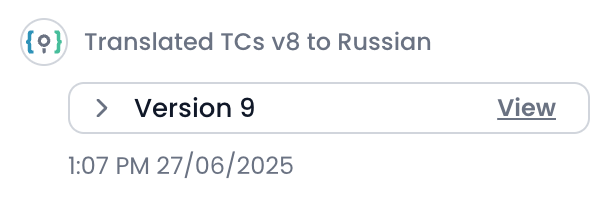
* The Timeline will show an entry indicating that your test cases have been translated into the new language.
## 3. Reviewing Translated Versions
* You can switch to the new version using the **Version** dropdown or from the **Timeline** tab.
* Timeline entries will clearly indicate when and which version was translated, along with the language.
## 2. How Translation Works
* The application sends your translation request to the AI engine.
* The AI will translate all current test cases and/or checklist into the selected language.
* If your current version only has checklist, only those will be translated.
* If your current version includes both checklist and test cases, both will be translated.
* After the translation is complete:
* A **new version** is automatically created with the translated content.
* The Timeline will show an entry indicating that your test cases have been translated into the new language.
## 3. Reviewing Translated Versions
* You can switch to the new version using the **Version** dropdown or from the **Timeline** tab.
* Timeline entries will clearly indicate when and which version was translated, along with the language.
 **NOTE:**
* The translation applies to the current content of your feature. Make sure you are on the correct version before running translation.
* Each translation creates a new version, so your original content is always preserved.
## 4. Compare versions
You can compare the test cases version of original language and the translated language by using **compare version** feature. This feature will be developed soon.
**NOTE:**
* The translation applies to the current content of your feature. Make sure you are on the correct version before running translation.
* Each translation creates a new version, so your original content is always preserved.
## 4. Compare versions
You can compare the test cases version of original language and the translated language by using **compare version** feature. This feature will be developed soon.