> ## Documentation Index
> Fetch the complete documentation index at: https://docs.testgenai.com/llms.txt
> Use this file to discover all available pages before exploring further.
# Export
> The Export feature allows you to easily download your checklist or test cases in multiple formats for use in other tools, documentation, or reporting. You have full control over data selection, field order, test case IDs, and export format.
## 1. Supported Export Formats
* **XLSX** (Excel)
* **CSV**
* **JSON**
## 2. What Can Be Exported?
* **Checklist only** (without detailed test steps)
* **Full Test Cases** (including title, pre-conditions, description, all steps, expected results, and related fields)
## 3. Export Options and Customization
* **Field Selection & Ordering:**\
Choose which fields to include in your export (e.g., Title, ID, Checklist, Priority, Category, etc.) and drag to set the column order.
* **Test Case Selection:**
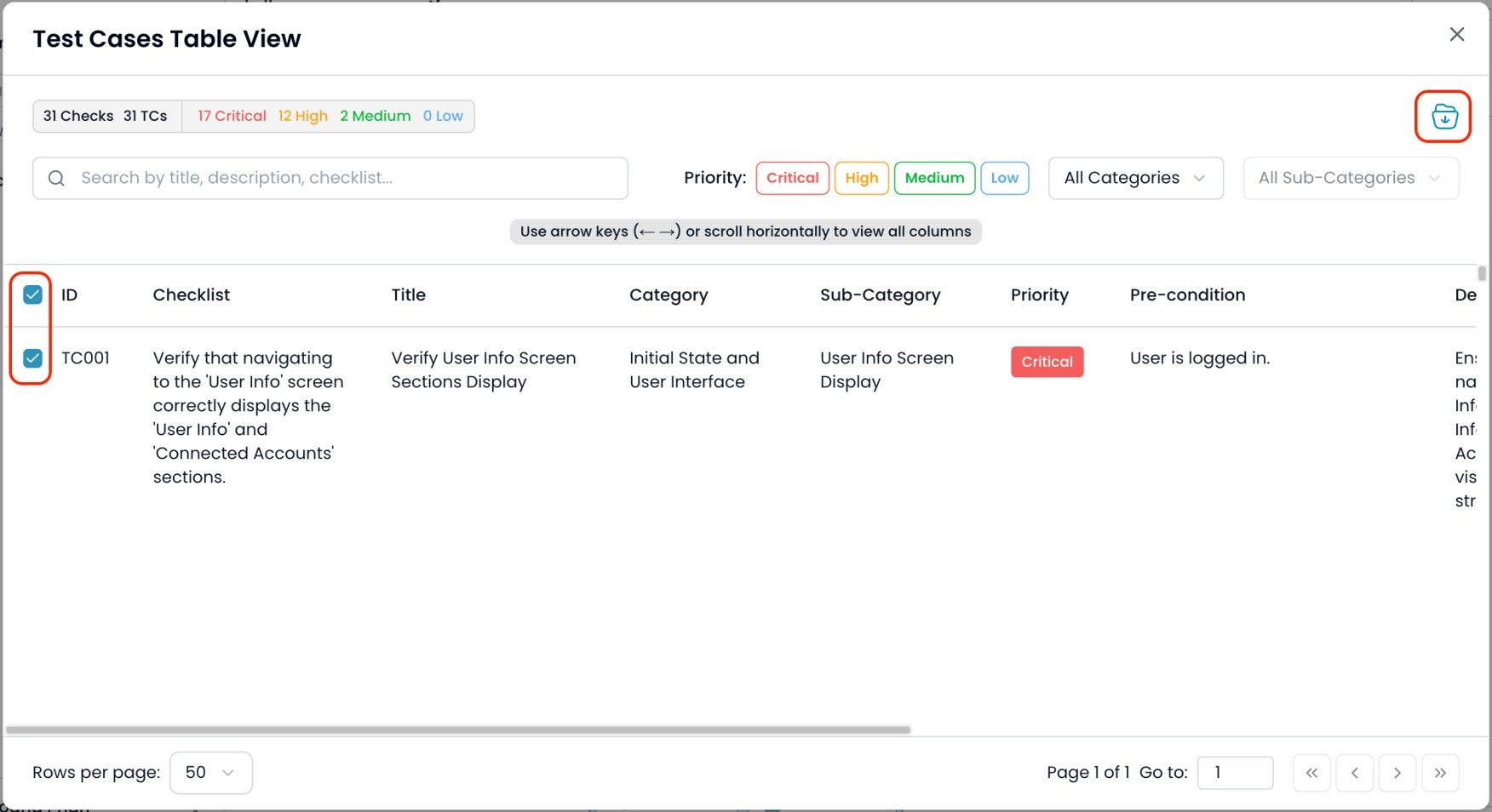
* In **Table View**: Select specific test cases you want to export, then click the **Export** icon.
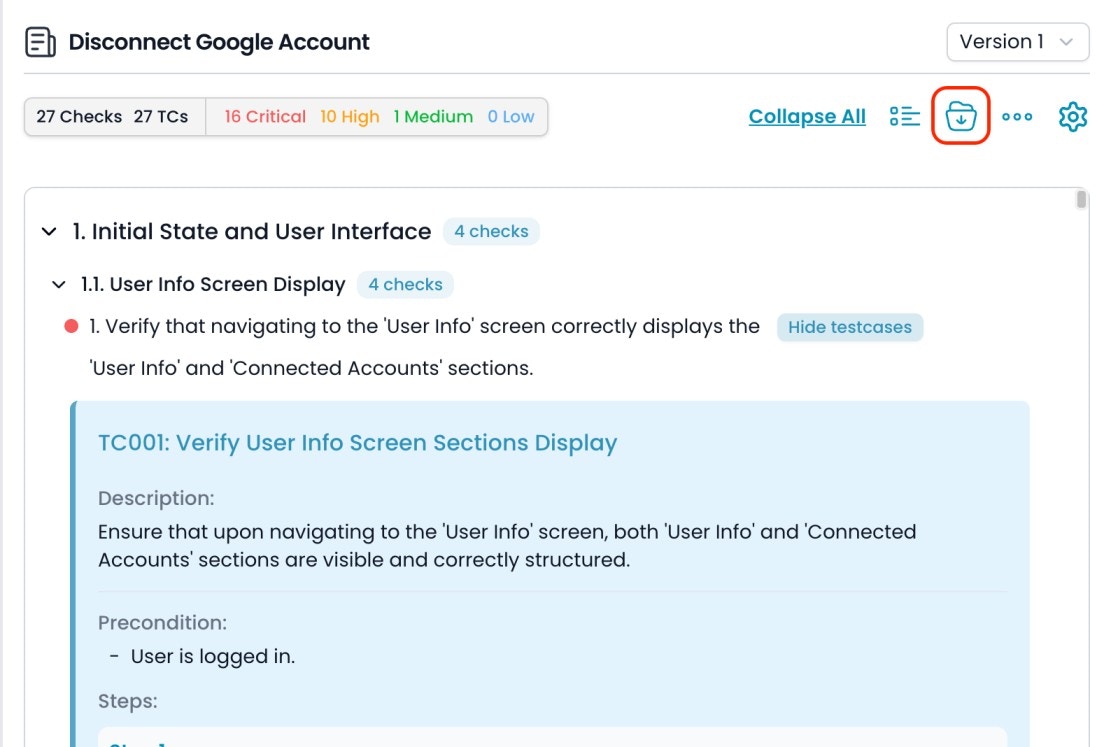
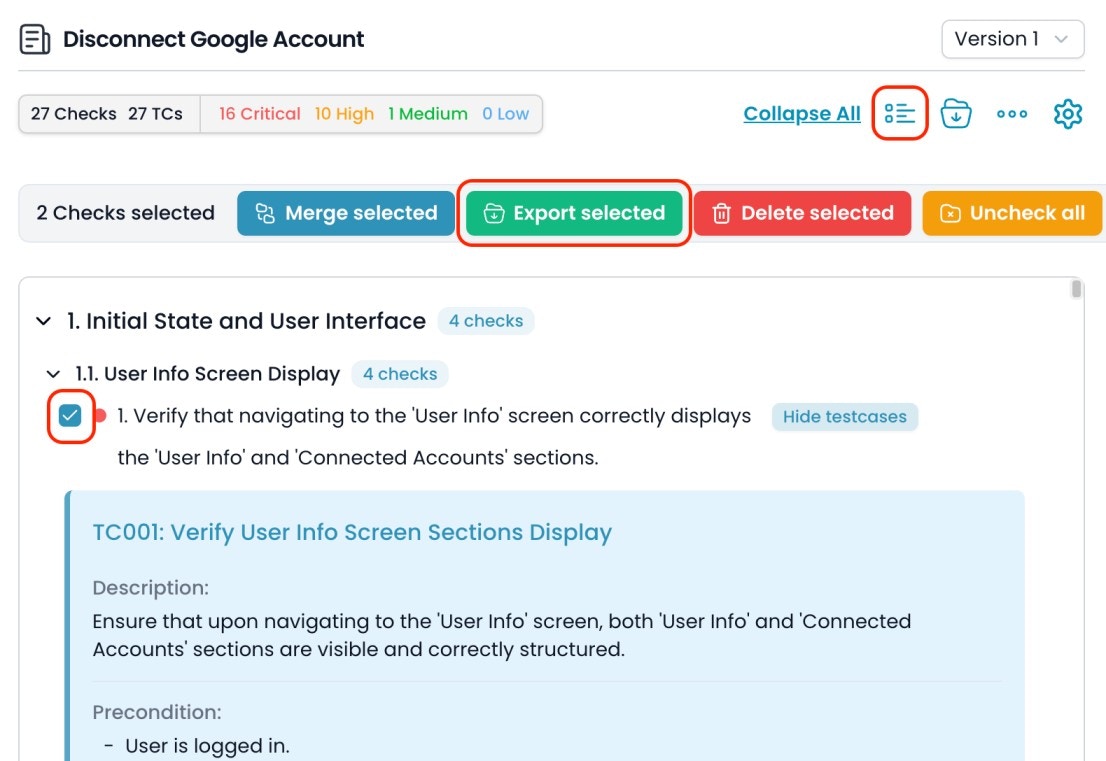
* In **Card View**: Click the **Export** icon to export all, or use **Multiselect** to pick specific cases, then export only your selections.
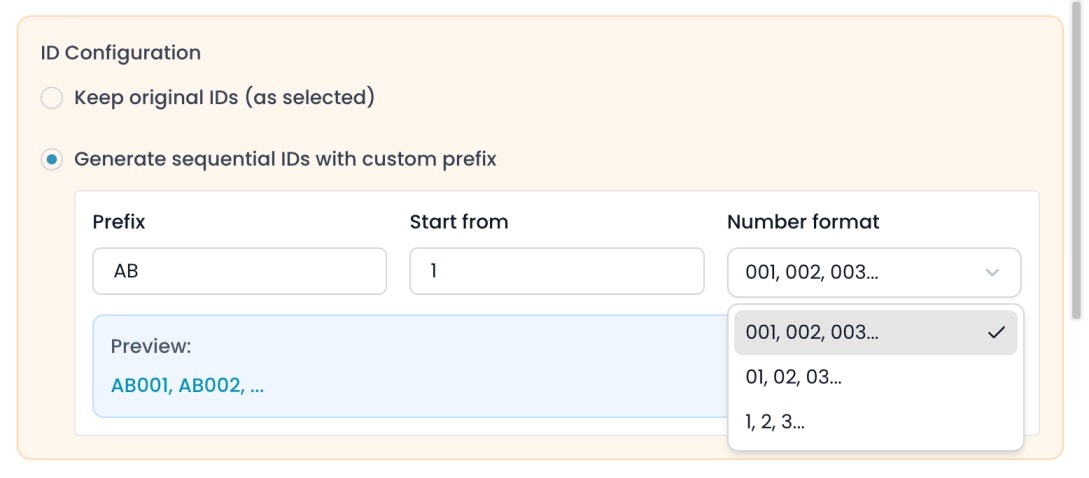
* **ID Configuration:**
* **Keep original IDs (as selected):**\
Exports test cases with their current IDs, even if they’re not in sequence (e.g., TC010, TC012, TC015).
* **Generate sequential IDs with custom prefix:**\
Assign new IDs to exported cases, starting from your chosen prefix and number. For example, if you select prefix "AB", start from 5 and export three cases, their IDs will be AB005, AB006, AB007 (regardless of the original IDs).
 * **Export Format:**\
Choose your file type (JSON, CSV, XLSX) at export time.
## 4. How to Export
### 4.1. Export from Card View
1. Click the **Export** icon at the top right to export all cases.
* **Export Format:**\
Choose your file type (JSON, CSV, XLSX) at export time.
## 4. How to Export
### 4.1. Export from Card View
1. Click the **Export** icon at the top right to export all cases.
 2. Or, click **Multiselect**, select the cases you need, and then click **Export Selected**.
 ### 4.2. Export from Table View
1. Select the specific test cases you want to export using the checkboxes.
2. Click the **Export Selected** button.
### 4.2. Export from Table View
1. Select the specific test cases you want to export using the checkboxes.
2. Click the **Export Selected** button.
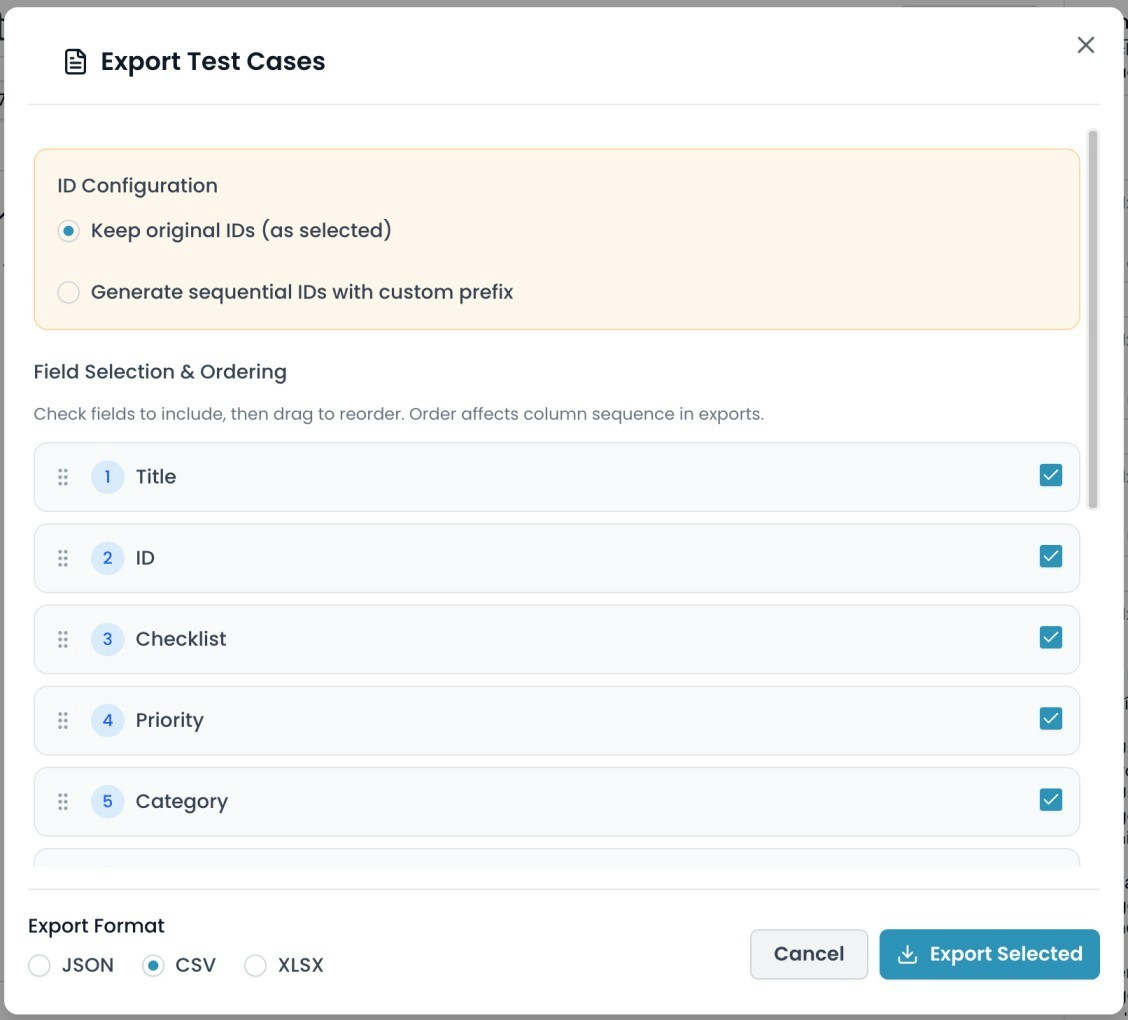
 ### Export Dialog
* In the export dialog, configure:
* **ID Configuration**
* **Field Selection & Ordering** (check/uncheck fields, drag to reorder)
* **Export Format**
* Click **Export Selected** to download your file.
### Export Dialog
* In the export dialog, configure:
* **ID Configuration**
* **Field Selection & Ordering** (check/uncheck fields, drag to reorder)
* **Export Format**
* Click **Export Selected** to download your file.
 **Tips**
* Use field selection and ordering to match your export with the target system or reporting standard.
* Use ID configuration to keep original traceability or to generate clean IDs for import into other tools.
* Export only the cases you need for efficient handoff or review.
***
**Tips**
* Use field selection and ordering to match your export with the target system or reporting standard.
* Use ID configuration to keep original traceability or to generate clean IDs for import into other tools.
* Export only the cases you need for efficient handoff or review.
***