> ## Documentation Index
> Fetch the complete documentation index at: https://docs.testgenai.com/llms.txt
> Use this file to discover all available pages before exploring further.
# Test Cases
> Creating test cases with TestGenAI is the most important step to ensure your product is well-tested and high quality. The platform leverages AI to help you quickly generate, review, and manage comprehensive, detailed test cases from just your requirements.
## Steps to Create Test Cases
### 1. Prepare Your Project
Make sure you have already created a project and configured your test case preferences (test case types, desired detail level, etc.).
Create a project to manage features & test cases
Create the folder to manage epic or multiple features
### 2. Open the Test Case Generator
* In the sidebar, click **+ New Test Cases** to open the test case creation screen.
### 3. Input Feature Requirements
You can enter your requirements in various formats:
* **Text input:**\
Paste or type use cases, user stories, business rules, user flows, etc.
* **File upload:**\
Upload up to 10 files (.pdf, .txt, images, etc.) to provide specifications, wireframes, or screenshots.
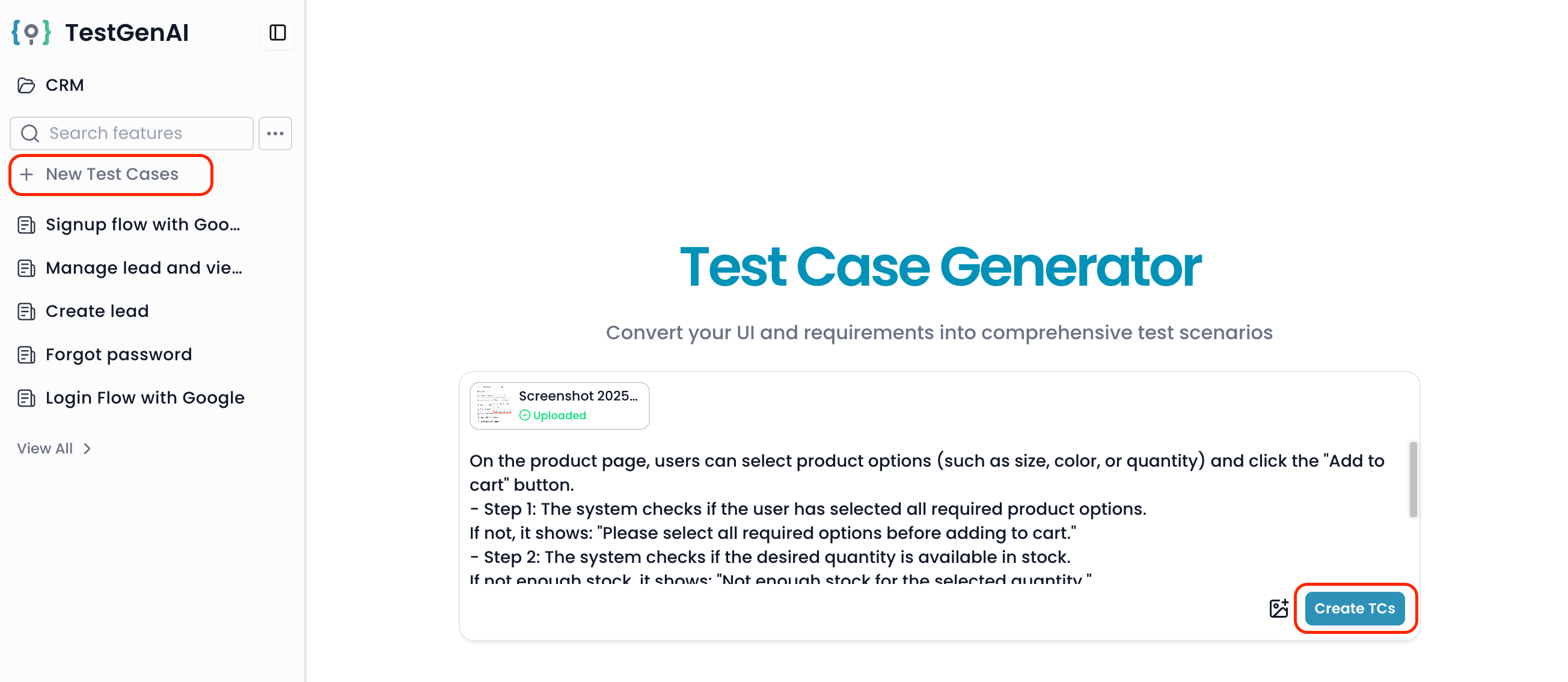 ### 4. Click "Create TCs"
* Optionally, select the language for your test cases if prompted.
* Click the **Create TCs** button to let AI process your requirements and propose checklist.
### 5. Review the Checklist
* AI will generate a **checklist** of all potential cases based on your requirements.
* The **checklist** is grouped by categories, sub-category and priorities (Critical, High, Medium, Low).
### 6. Refine the checklist (Optional)
* You can **comment, add, remove, or adjust** any **checklist** item.
* Once done, click **Update with changes** to re-sync the **checklist** with your adjustments.
Edit, add comments then updating checklist following comments.
### 7. Generate Test Cases
You have flexible options for generating test cases:
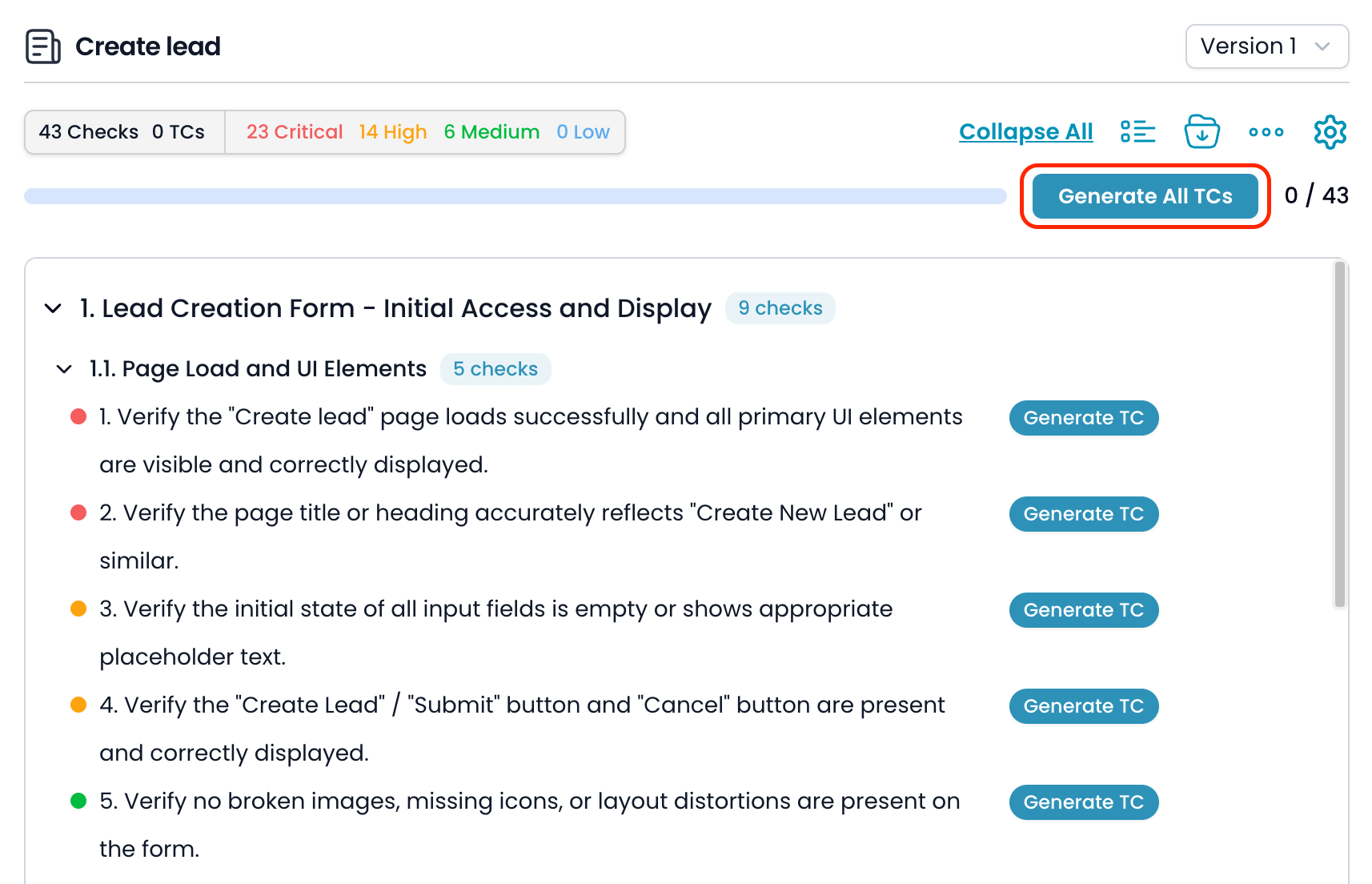
* **Generate All TCs:** Create test cases for every checklist item at once.
* **Generate TCs** by category or sub-category.
* **Generate TC** for a single checklist item.
### 4. Click "Create TCs"
* Optionally, select the language for your test cases if prompted.
* Click the **Create TCs** button to let AI process your requirements and propose checklist.
### 5. Review the Checklist
* AI will generate a **checklist** of all potential cases based on your requirements.
* The **checklist** is grouped by categories, sub-category and priorities (Critical, High, Medium, Low).
### 6. Refine the checklist (Optional)
* You can **comment, add, remove, or adjust** any **checklist** item.
* Once done, click **Update with changes** to re-sync the **checklist** with your adjustments.
Edit, add comments then updating checklist following comments.
### 7. Generate Test Cases
You have flexible options for generating test cases:
* **Generate All TCs:** Create test cases for every checklist item at once.
* **Generate TCs** by category or sub-category.
* **Generate TC** for a single checklist item.
 #### Test Case Settings Popup
On the **first** **generate action** or clicking on **Setting** icon, you’ll see a popup to configure:
* **Test Case ID Prefix:** Set how your test cases are numbered (e.g. LEAD001).
* **Test Data Example:** Optionally provide test data. This will be sent to AI with each generation or update.
#### Test Case Settings Popup
On the **first** **generate action** or clicking on **Setting** icon, you’ll see a popup to configure:
* **Test Case ID Prefix:** Set how your test cases are numbered (e.g. LEAD001).
* **Test Data Example:** Optionally provide test data. This will be sent to AI with each generation or update.
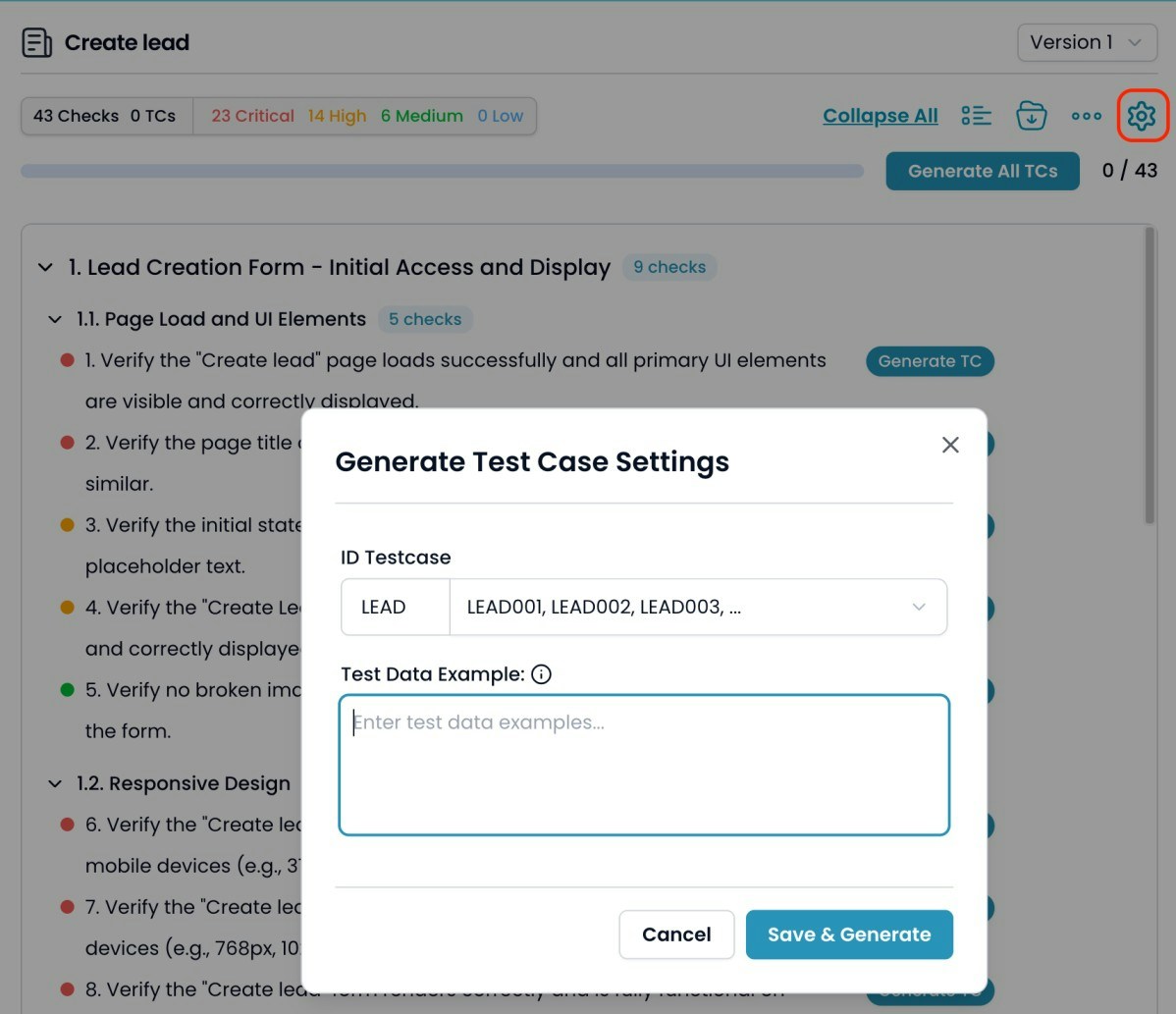 You can update these **settings** anytime. Test data will be included each time you generate or update test cases.
### 8. Update Test Case
You have flexible requesting to regenerat test case with comment
You can update these **settings** anytime. Test data will be included each time you generate or update test cases.
### 8. Update Test Case
You have flexible requesting to regenerat test case with comment
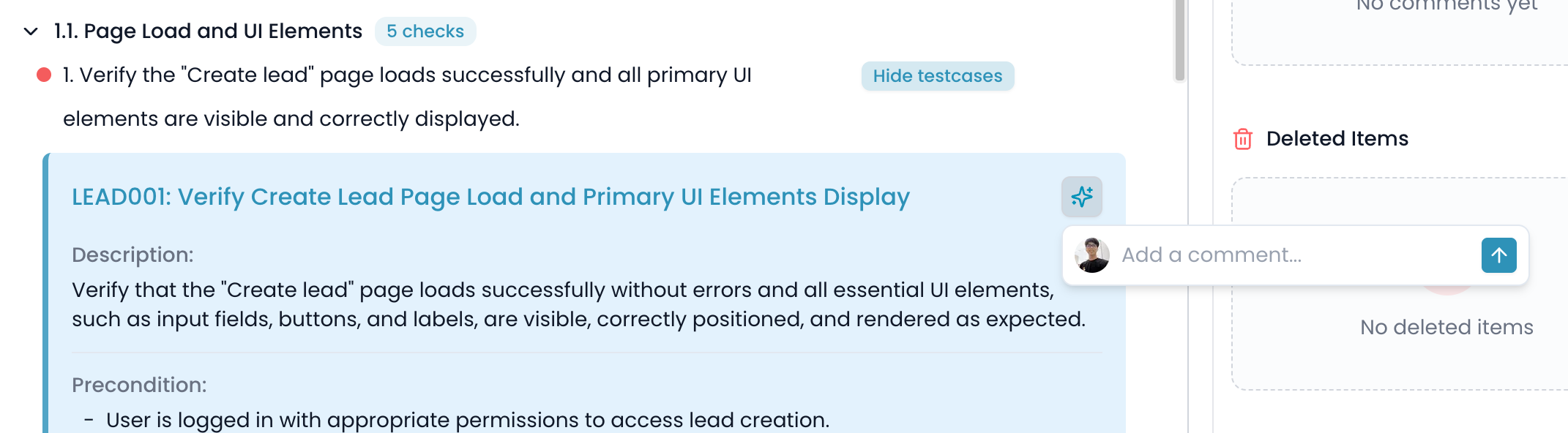 Comment and request to regenerate a test case
### 9. View Test Case Generation History
* You can view all history of changes: checklist creation, test cases generation, additions, removals, translations, etc.
View all history of changes
View versions of testcase
### 10. Table View & Filtering
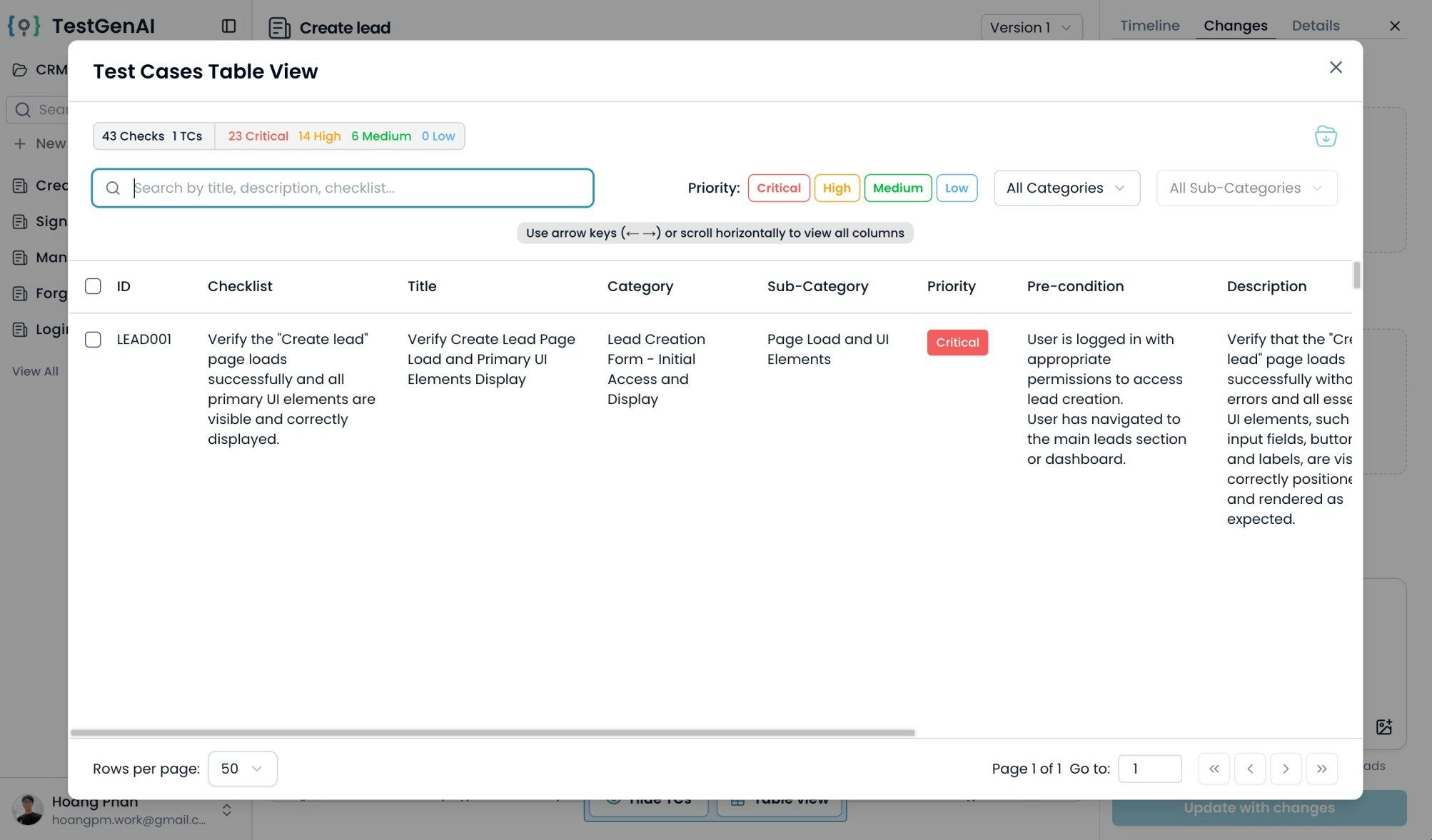
* Switch to **Table View** to view test cases in a grid, making it easy to search, filter, and review details.
* Filter by priority, category, sub-category, or search by keyword.
Comment and request to regenerate a test case
### 9. View Test Case Generation History
* You can view all history of changes: checklist creation, test cases generation, additions, removals, translations, etc.
View all history of changes
View versions of testcase
### 10. Table View & Filtering
* Switch to **Table View** to view test cases in a grid, making it easy to search, filter, and review details.
* Filter by priority, category, sub-category, or search by keyword.
 ### 11. Continue Generation
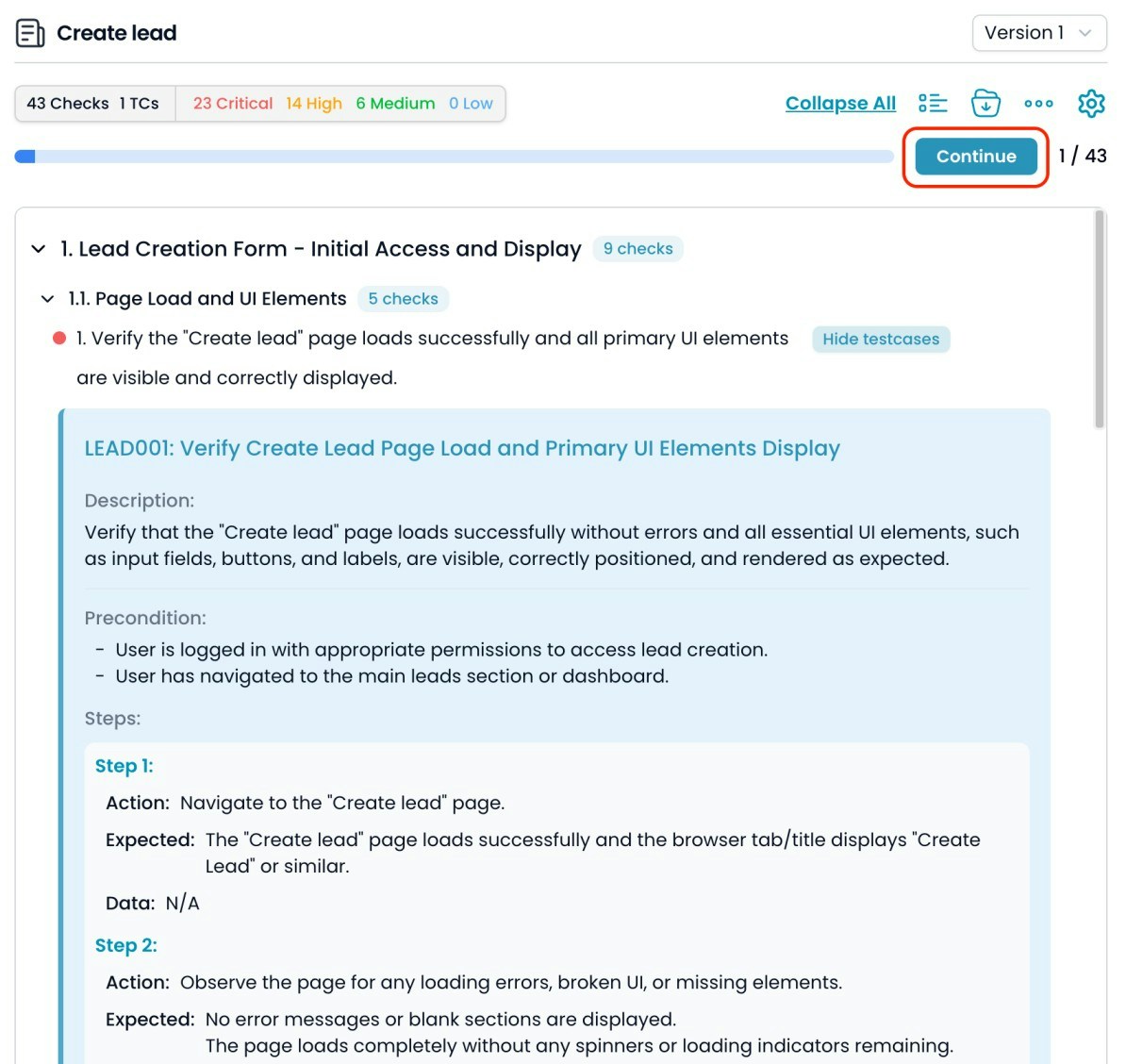
* If not all test cases have been generated for a feature, click **Continue** to let the AI finish generating any remaining test cases.
### 11. Continue Generation
* If not all test cases have been generated for a feature, click **Continue** to let the AI finish generating any remaining test cases.
 ## Notes
* You can always return to refine requirements, add new files, or update the checklist.
* AI-generated test cases are customizable—review and adjust as needed for your team’s standards.
* The process supports both high-level checklist generation and detailed test cases, step-by-step test cases.
**TIPS**
* The more detailed and clear your requirements, the higher the quality of generated test cases.
* Use images and files for complex flows or UI requirements.
* Leverage the Table View for bulk management and review of large test case sets.
***
### 11. Other related features
Creates a new version with all test cases translated to selected language
Creates new checklist based on original requirements, ignoring current checklist
Remove all test cases, keep the checklist, and create a new version
Export the selected test cases with selected fields and their orders
## Notes
* You can always return to refine requirements, add new files, or update the checklist.
* AI-generated test cases are customizable—review and adjust as needed for your team’s standards.
* The process supports both high-level checklist generation and detailed test cases, step-by-step test cases.
**TIPS**
* The more detailed and clear your requirements, the higher the quality of generated test cases.
* Use images and files for complex flows or UI requirements.
* Leverage the Table View for bulk management and review of large test case sets.
***
### 11. Other related features
Creates a new version with all test cases translated to selected language
Creates new checklist based on original requirements, ignoring current checklist
Remove all test cases, keep the checklist, and create a new version
Export the selected test cases with selected fields and their orders