> ## Documentation Index
> Fetch the complete documentation index at: https://docs.testgenai.com/llms.txt
> Use this file to discover all available pages before exploring further.
# Clone Checklist
> The Clone Checklist feature allows you to quickly duplicate your current set of checklist, but without any of the associated test cases. This is useful when you want a clean version of your checklist to generate new test cases.
## 1. How to Use Clone Checklist
1. On the feature details page, click the **three dots ("...")** menu located between the download and settings icons.
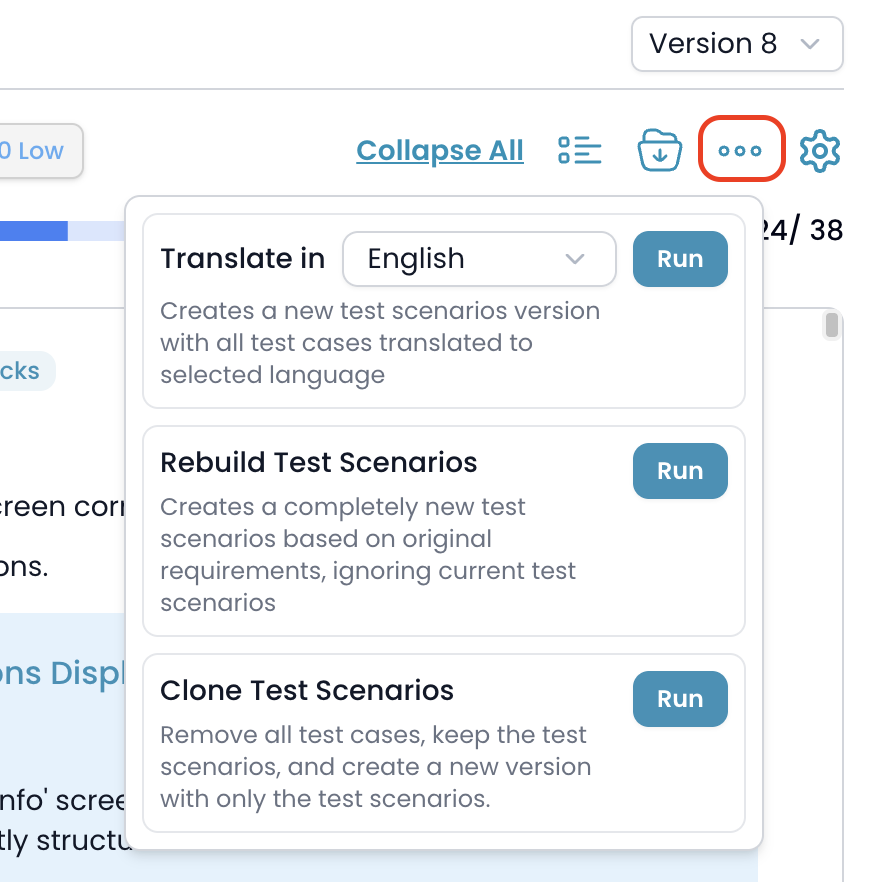 2. In the dropdown, select the **Clone Checklist** option.
3. Click the **Run** button next to this option.
## 2. What Happens When You Clone?
* The system creates a **new version** of your feature.
* All current **test cases are removed**; only the checklist are kept in the new version.
* This gives you a fresh starting point to generate new test cases or make further adjustments to your checklist.
## 3. Timeline Integration
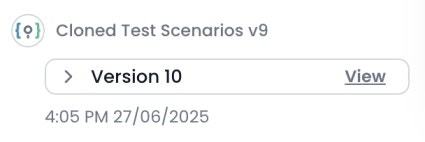
* After cloning, an entry will appear in the **Timeline** tab showing that the checklist were cloned, indicating the source version and the newly created version.
2. In the dropdown, select the **Clone Checklist** option.
3. Click the **Run** button next to this option.
## 2. What Happens When You Clone?
* The system creates a **new version** of your feature.
* All current **test cases are removed**; only the checklist are kept in the new version.
* This gives you a fresh starting point to generate new test cases or make further adjustments to your checklist.
## 3. Timeline Integration
* After cloning, an entry will appear in the **Timeline** tab showing that the checklist were cloned, indicating the source version and the newly created version.
 **Note:**
* Cloning does **not** affect your existing versions — all previous test cases and checklist are preserved.
* You can always return to any prior version using the Version dropdown or Timeline.
***
**Note:**
* Cloning does **not** affect your existing versions — all previous test cases and checklist are preserved.
* You can always return to any prior version using the Version dropdown or Timeline.
***